Terminals
Local terminals and shells
Local at the top of the sidebar opens a terminal on your computer; the ▾ next to it picks a shell (zsh, bash, fish…; on Windows PowerShell, cmd, Git Bash and WSL distributions). Set the default in Settings → Shell for new local terminals.
Tabs
Every connection opens in a tab. Right-click a tab (or press Shift+F10) to rename, duplicate, save its output or close other tabs. Cmd/Ctrl+K opens the command palette, which searches tabs, sessions and actions. All shortcuts: Keyboard shortcuts.
Split panes
The first three toolbar buttons split the tab side by side, top and bottom, or into four panes:
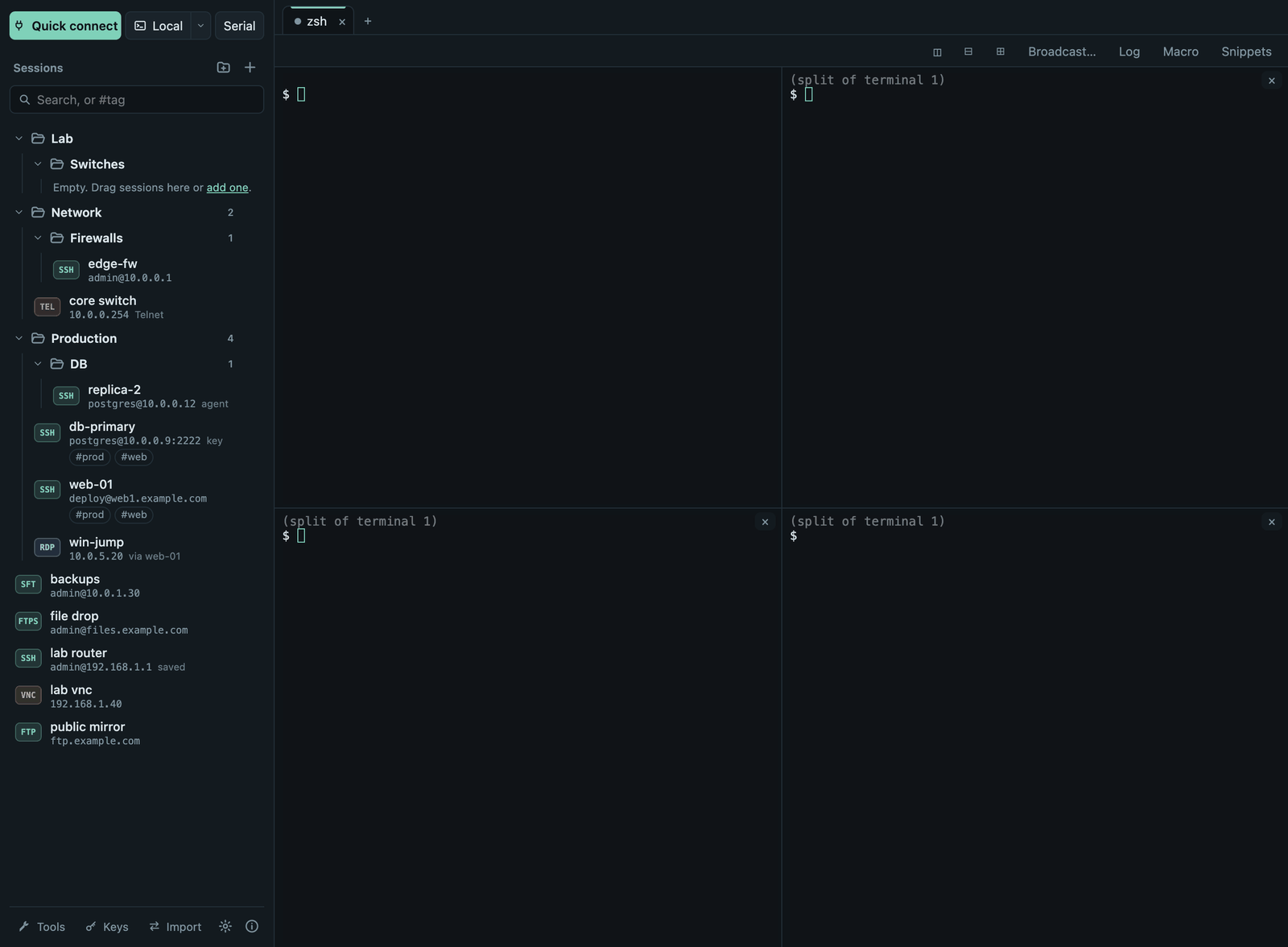
SSH panes share the tab's connection, so splitting is instant and needs no second login.
Broadcast typing
Broadcast… types into several terminals at once, e.g. to run the same command on a group of servers. Pick the target terminals; the source shows a red banner and every target is marked, so you always know where your keystrokes go.
Snippets
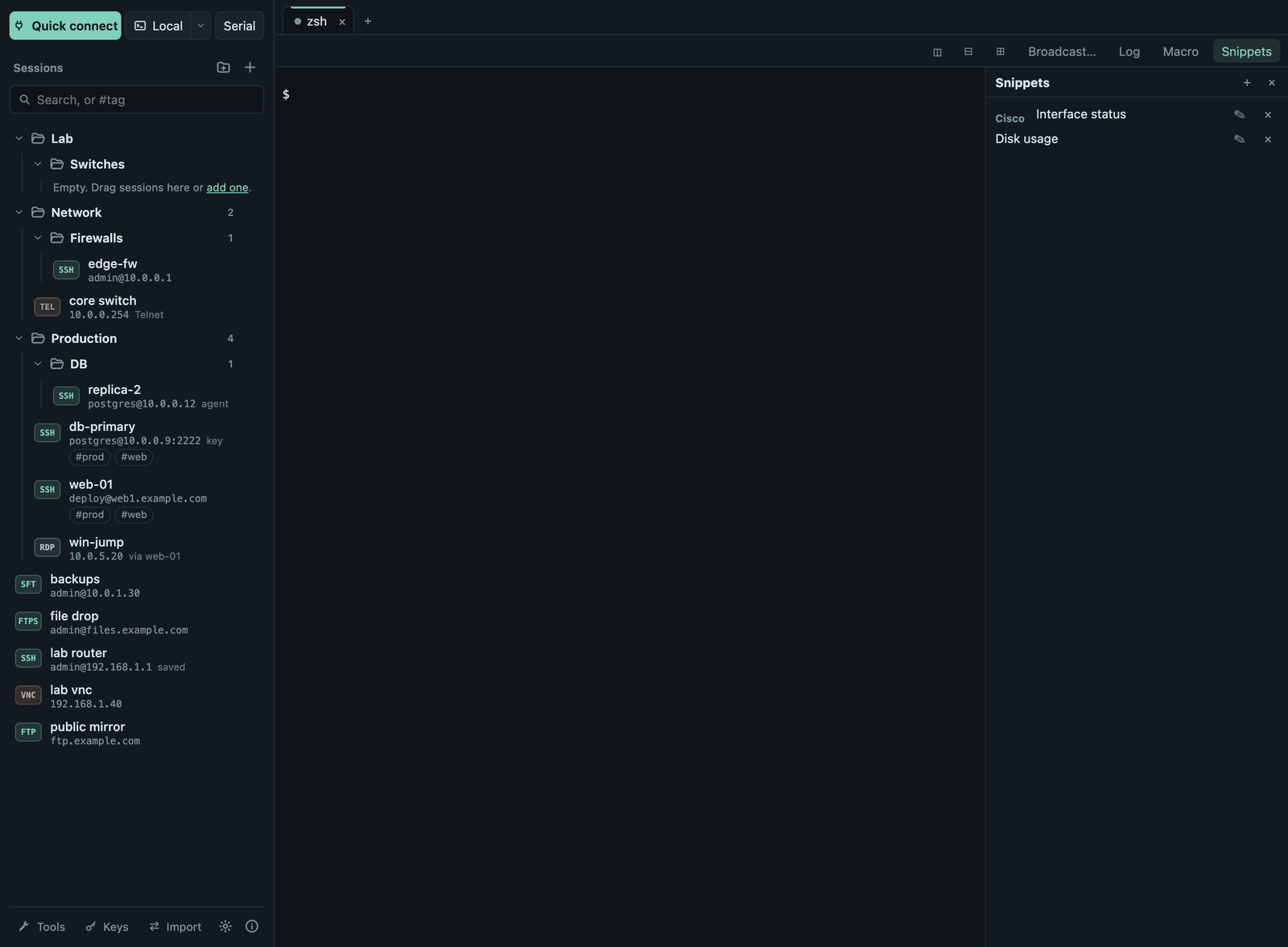
Snippets keeps commands you use often. A snippet can contain
{{variables}}; when you run it you fill them in and see exactly what will
be typed, and choose whether to press Enter.
Macros
Macro records what you type, including the pauses. Stop it, check the recorded keys and give it a name; ▶ under Macros in the Snippets panel plays it in the current terminal. Recording captures everything, passwords included, and macros are stored unencrypted, so discard a recording if you typed a password.
Logs and saved output
- Log saves everything the tab shows as plain text in
Documents/Termalith Logs. Settings can log every new terminal automatically. Logs may contain sensitive output. - Save output… in the tab menu saves what is on screen plus the scrollback.
Find, copy and links
- Cmd+F (macOS) or Ctrl+Shift+F finds text in the scrollback.
- Copy and paste: Cmd+C/V, or Ctrl+Shift+C/V. Optional in Settings: copy on select, paste with a right-click.
- Cmd/Ctrl+click opens an
http(s)link in your browser.
Colors, fonts and keyword colors
- Settings chooses the terminal colors (Solarized Dark and Light, Nord, Gruvbox Dark, Tomorrow Night, or following the app theme), font, font size, cursor and scrollback.
- Color keywords in terminal output shows words such as error, warning and ok in color. Only the display changes: copied text and logs stay as they were, and full-screen programs are left alone.
Per-session look
A session's Appearance (in the session dialog) can give it its own colors, font size and font, so production servers stand out. Empty fields follow Settings. Works for SSH and Telnet sessions.