SSH
Logging in
Choose Authentication in the session dialog:
- Password: asked when you connect. Tick Save in the system keychain to store it; it is saved only after the login worked.
- Private key file: the full path to your key, e.g.
/Users/you/.ssh/id_ed25519. If the key has a passphrase you are asked for it (and may save it). - SSH agent: uses the keys loaded in your running
ssh-agent(on Windows, the OpenSSH Authentication Agent service).
Servers that ask extra questions, such as a PAM password prompt or a one-time code from an authenticator app, show them in a dialog. A password you already entered is reused for a plain password prompt; codes are always asked.
Host keys
The first connection to a server shows its key fingerprint: Trust and
connect (remembered), Connect once or Don't connect. Keys you
already accepted in OpenSSH (~/.ssh/known_hosts) are trusted too.
If a server's key changes, Termalith refuses to connect and shows both fingerprints. Only after the server's administrator confirms the change, use Remove recorded key… and connect again.
Jump hosts and proxies
- Jump host: in the session dialog choose Connect via (jump host) and another saved SSH session. Every hop's host key is checked. The jump host must log in without questions (a saved password, a key or the agent).
- Proxy: Settings → Proxy sends SSH and Telnet connections through a SOCKS5 or HTTP CONNECT proxy, optionally with a user name and password (kept in the system keychain). Only the first hop goes through the proxy; the proxy sees which server you connect to but not the encrypted SSH traffic. HTTP proxies receive the password in the clear (Basic authentication), so use one you trust.
Per-session options
- Run after login: one command typed into the shell when it is ready,
e.g.
cd /var/logortmux attach || tmux. - Forward my SSH agent to this host: the server may use your agent's
keys while you are connected (for
gitor further SSH hops). Anyone with root on that server can use them too (not copy them), so enable it only for hosts you trust. Not applied to the jump host. - Forward X11: graphical programs on the server open windows on your screen. You need a local X server: XQuartz on macOS, VcXsrv or Xming on Windows. The server receives only a random substitute cookie.
- Files only (SFTP, no terminal): connecting opens the file browser directly.
- Appearance: colors, font size and font for this session only; see Terminals.
Reconnect
If a connection drops (not when you type exit), the tab shows Connection
lost. Reconnecting in 5 s… with Cancel. Turn it off in
Settings with Reconnect SSH tabs automatically.
Tunnels
Tunnels on an SSH tab forwards ports through the connection:
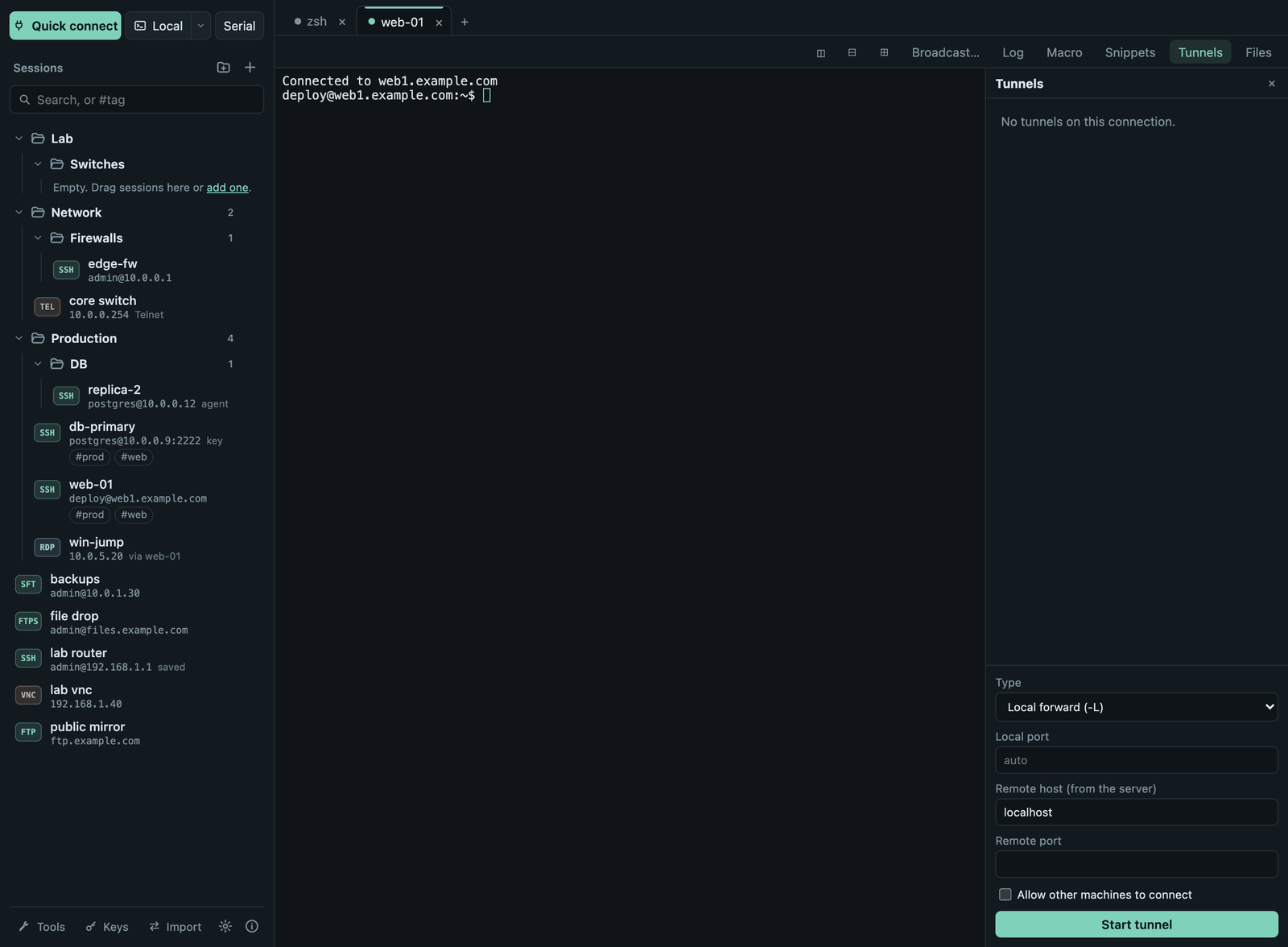
| Type | Like | What it does |
|---|---|---|
| Local forward | ssh -L |
A port on your computer reaches a host and port seen from the server, e.g. a database. |
| Remote forward | ssh -R |
A port on the server reaches a host and port on your side. |
| SOCKS proxy | ssh -D |
A SOCKS5 proxy on your computer whose connections leave through the server. |
Leave Local port on auto to get a free port. Tunnels listen on
127.0.0.1 unless you tick Allow other machines to connect (for remote
forwards: Listen on all server interfaces). They close with the tab.
Mosh
Tick Connect with Mosh for a session that survives network changes
(Wi-Fi to cable, sleep and wake). Termalith runs the mosh program
installed on your computer (macOS: brew install mosh; Linux: the mosh
package); the server needs mosh-server. Mosh signs in with your system's
ssh and its known hosts, in the terminal, so the password is typed there
and not saved. Jump hosts and forwarding are not available with Mosh.
SSH keys
Keys in the sidebar footer:
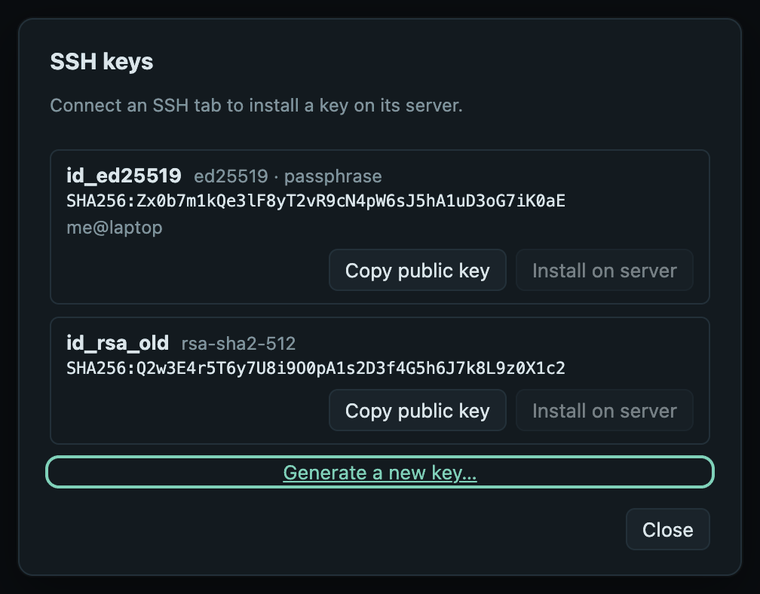
- Lists the key pairs in your
~/.sshfolder. - Generate a new key… creates an Ed25519 key, optionally with a passphrase.
- Copy public key puts the public key on the clipboard.
- Install on server adds it to
~/.ssh/authorized_keyson a server you are connected to; the folder and file get safe permissions and a key is never added twice.
Server monitor
Turn on Show a server monitor under SSH terminals in Settings to see CPU, load, memory, the root disk and network rate under the active SSH tab. It runs a read-only command on the server every 3 seconds and works on Linux servers only; on others the bar says so.