Your first connection
This walk-through saves an SSH server, connects to it and opens its files. It takes about two minutes.
1. The window
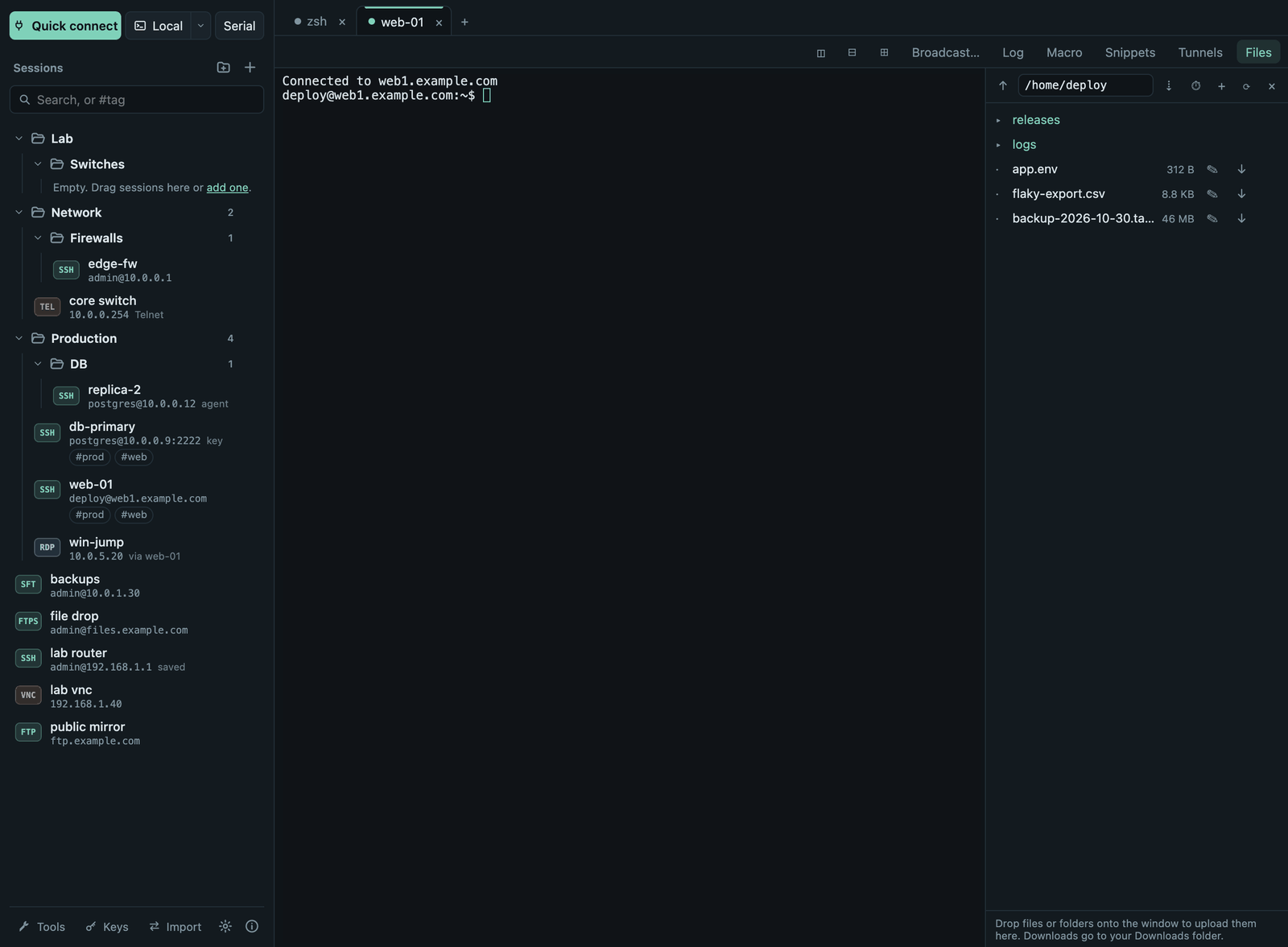
- Left, top: Quick connect (connect without saving), Local (a terminal on this computer; the ▾ picks a shell) and Serial.
- Left, middle: your saved sessions as a folder tree, with search.
- Left, bottom: Tools (network tools), Keys (SSH key manager), Import (import and export sessions), ☀ (Settings) and ⓘ (About, update check).
- Right: your tabs. Every connection opens in a tab. Above a terminal is its toolbar: split, broadcast, log, macro, snippets and, for SSH tabs, Tunnels and Files.
2. Save a server
Click + next to Sessions.
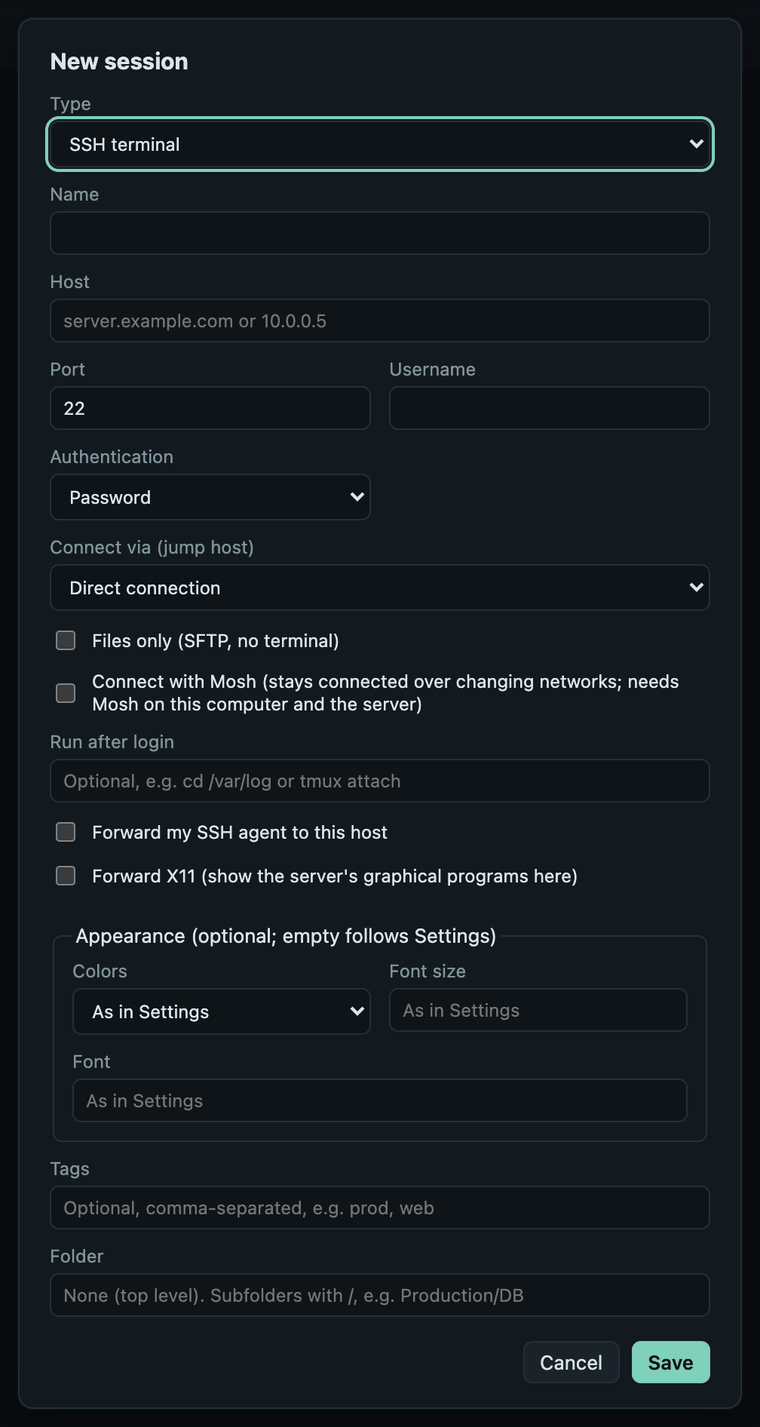
- Type: SSH terminal (the other types are RDP, VNC, Telnet, FTPS and FTP).
- Name: anything you like, e.g.
web-01. - Host and Port: the server's name or IP address; the port is 22 for SSH unless your server uses another one.
- Username: your account on the server.
- Authentication: Password, Private key file (enter its full path, e.g.
/Users/you/.ssh/id_ed25519) or SSH agent. See SSH → Logging in. - Optional: a Folder (
Production/Webmakes nested folders) and Tags (prod, web). - Save. The session appears in the list.
Everything else in the dialog is optional and explained in SSH and Sessions.
3. Connect and confirm the host key
Click the session. The first time you connect to a server, Termalith shows its host key fingerprint:
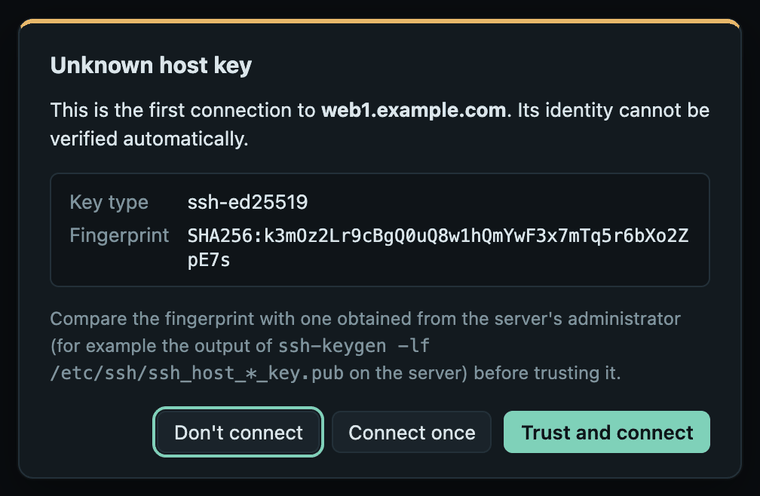
A fingerprint is the server's identity. If you can, compare it with the one
your administrator gives you (ssh-keygen -lf /etc/ssh/ssh_host_ed25519_key.pub
on the server). Then choose:
- Trust and connect: remembered; you will not be asked again.
- Connect once: connects now and asks again next time.
- Don't connect.
If you already used the server with OpenSSH, Termalith trusts the keys in
your ~/.ssh/known_hosts and does not ask.
If Termalith says the host key changed
It refuses to connect. This happens when a server is reinstalled, but it can also mean someone is intercepting the connection. Check with the server's administrator before you use Remove recorded key….
4. Log in
For a password session, Termalith asks for the password:
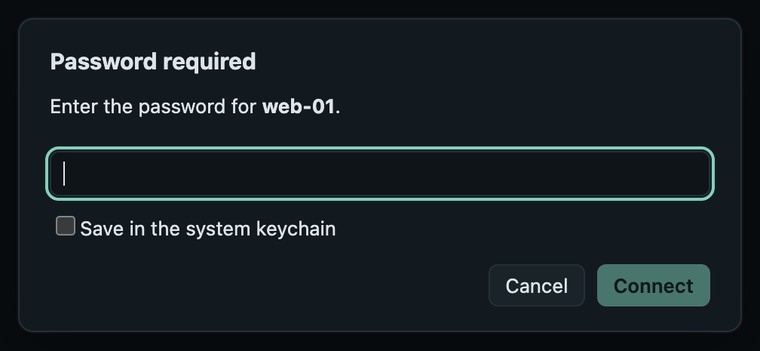
Tick Save in the system keychain to log in without typing it next time. It is saved only after the login worked, in your system's keychain (macOS Keychain, Windows Credential Manager or the Secret Service on Linux), never in Termalith's own files. Servers that ask for a one-time code from an authenticator app show that question in the same way.
You now have a terminal on the server.
5. Open files and tunnels
- Files on the toolbar opens the server's files next to the terminal. Drop files or folders onto the window to upload; click ↓ to download to your Downloads folder. See Files.
- Tunnels forwards ports through the connection, like
ssh -L,-Rand-D. See SSH → Tunnels.
Next steps
- Bring in your existing sessions:
Import from MobaXterm or
~/.ssh/config. - Organize them with folders, favorites and tags: Sessions.
- Work in several servers at once: Terminals.
- Protect saved passwords with a master password: Passwords and your data.