Files
Ways to open files
- Files on an SSH tab's toolbar opens the server's files next to the terminal, over the same connection.
- ⇅ on an SSH session row opens a file-browser tab without a shell. Open terminal adds a shell on the same connection later.
- A session with Files only (SFTP, no terminal) always opens the file browser.
- FTPS and FTP sessions open the same file browser.
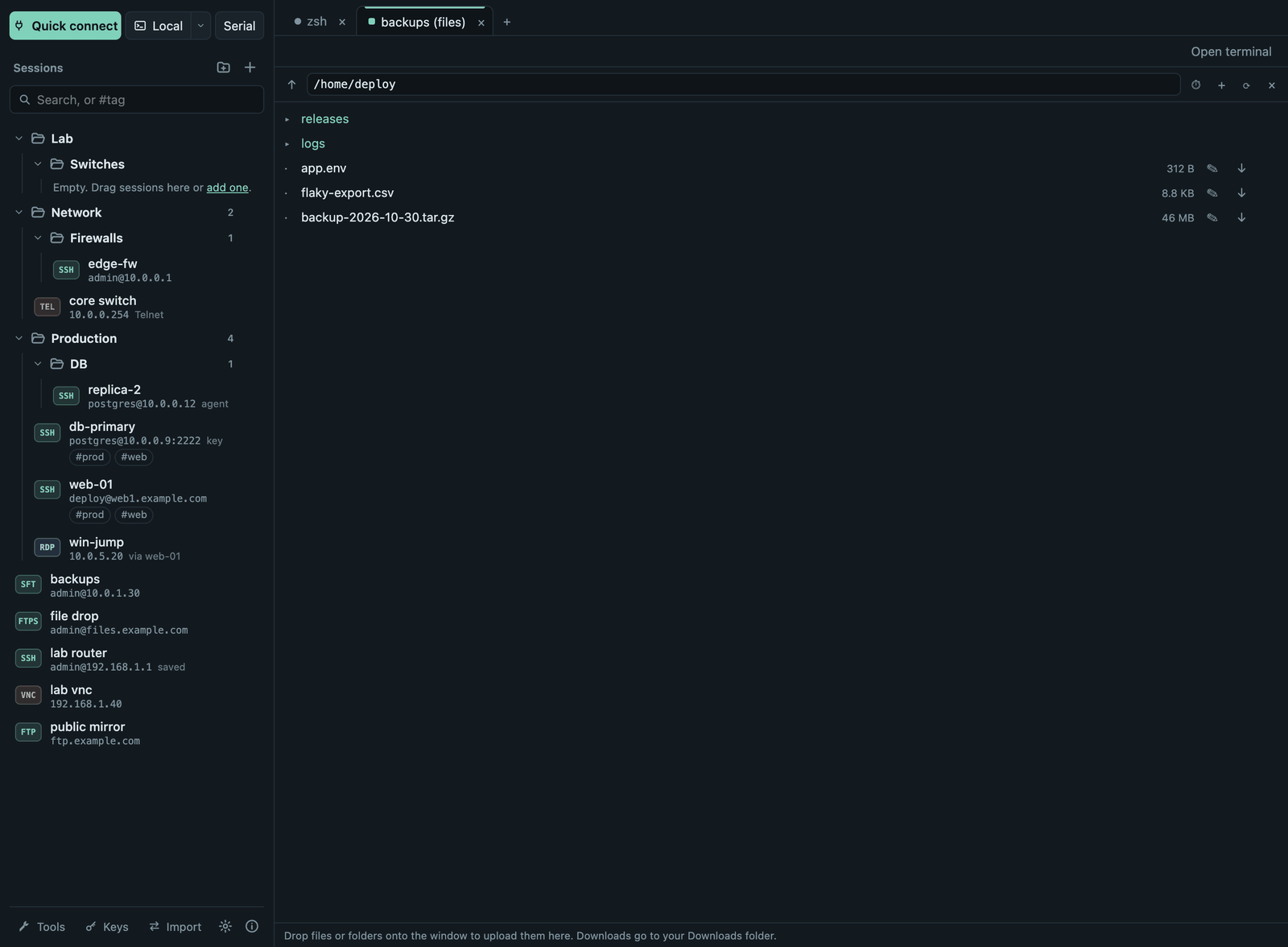
Moving files
- Upload: drop files or whole folders onto the window (the panel is outlined while you drag). A folder is uploaded with everything in it as one transfer, up to 10,000 entries; symbolic links are not followed, and a folder of the same name on the server is never merged or overwritten.
- Download: ↓ on a file saves it to your Downloads folder. For a folder, choose ⋯ → Download folder: it is saved with everything in it (symbolic links are skipped), over SFTP, FTP and FTPS alike. Files start arriving at once; the transfer shows how much has arrived so far (the folder's total size is not known in advance). If a folder of that name is already in Downloads, the new one gets a number; ↻ after a failure keeps the files already downloaded.
- Up to three transfers run at once. Connection errors are retried automatically; a failed transfer has Retry.
- Pause and resume downloads: ⏸ pauses a running download and ▶ continues it where it stopped, over SFTP, FTP and FTPS (also for folders). Automatic retries and Retry after a dropped connection continue the same way. If the file changed on the server in the meantime, it is downloaded again from the start. × on a paused download discards the part already downloaded. Paused downloads last until Termalith is closed.
- ⏱ Transfer history lists recent transfers of all connections (the last 500) with their outcome; Clear empties it. Only names, paths and sizes are kept, never file contents.
Managing files
- + creates a folder; the row menu (⋯) has Rename and Delete (files and empty folders; there is no recursive delete, by design).
- Type a path into the path field, or use ↑ (or Alt+↑, Backspace) for the parent folder.
Editing and comparing
- ✎ opens a text file (UTF-8, up to 2 MiB) in an editor tab. Cmd/Ctrl+S saves it back with its permissions. If someone changed the file on the server meanwhile, the save is refused and you choose to reload or overwrite.
- Compare… in a file's menu, then Compare with … on a second file, shows both side by side with the differences highlighted.
Follow the terminal's folder
The ⇣ button in the Files panel of an SSH tab makes the panel follow the terminal's current folder. Shells that report their folder work at once; for others Termalith offers to type one line into the terminal so that bash or zsh reports it until the shell exits. Nothing on the server is changed.
FTP and FTPS
- FTPS uses explicit TLS on the FTP port. You check the server's certificate once, as for RDP; the connection fails if the certificate changes unnoticed or the server offers no TLS.
- FTP is not encrypted: passwords and files can be read on the network. Prefer SFTP or FTPS.
- Leave the user name empty for anonymous login.
- Both connect directly: no jump host, and they refuse to connect while a proxy is set in Settings. Implicit FTPS (port 990) is not supported.